Video Links: Symbols
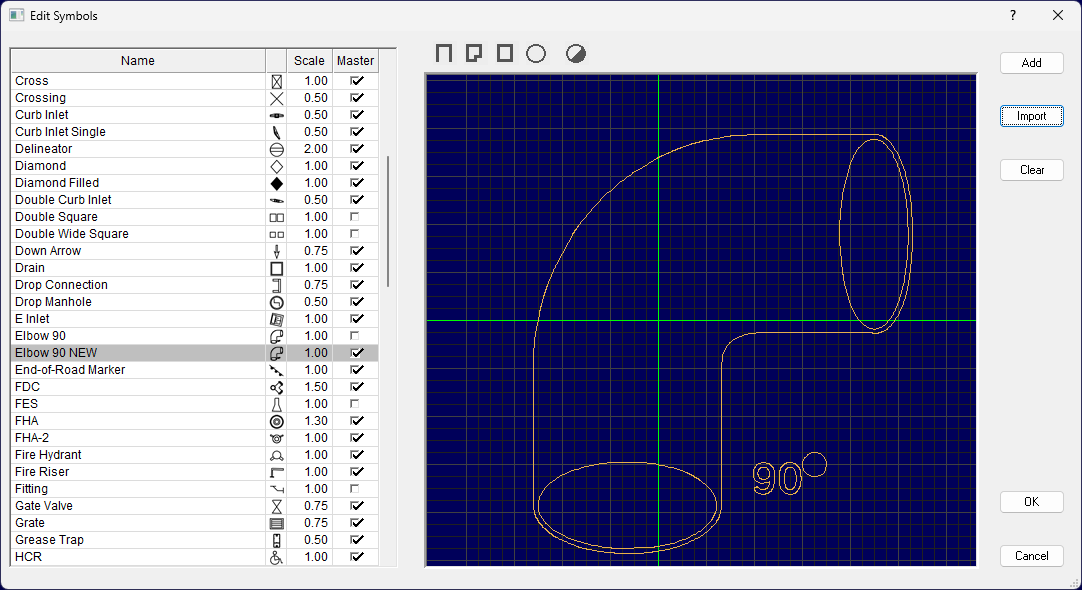
Symbols are used for count, vertical and fitting structures. A default symbol list will be added on installation. If you open older projects with user defined symbols, you may add them to the master symbols list. To display the Symbols list select Edit > Symbols. All current symbols in the file will be listed. To add the symbol to the master list, check the Master column.
Existing symbols may be modified. Select the symbol you want to edit.
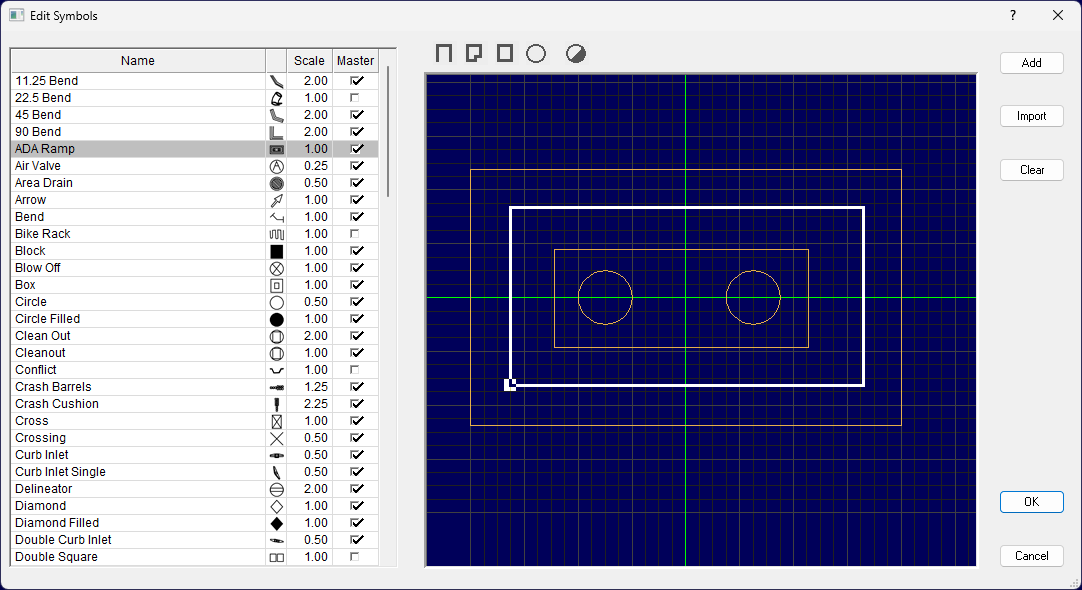
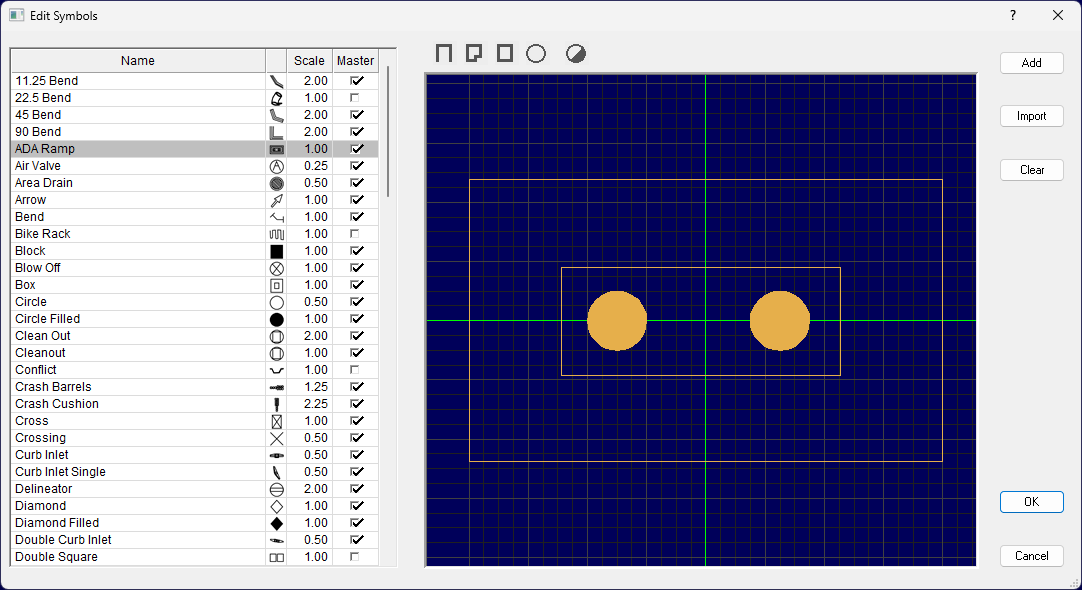
New segments may be added using the drawing tools. Selected lines may be moved or deleted. Enclosed areas may be filled.
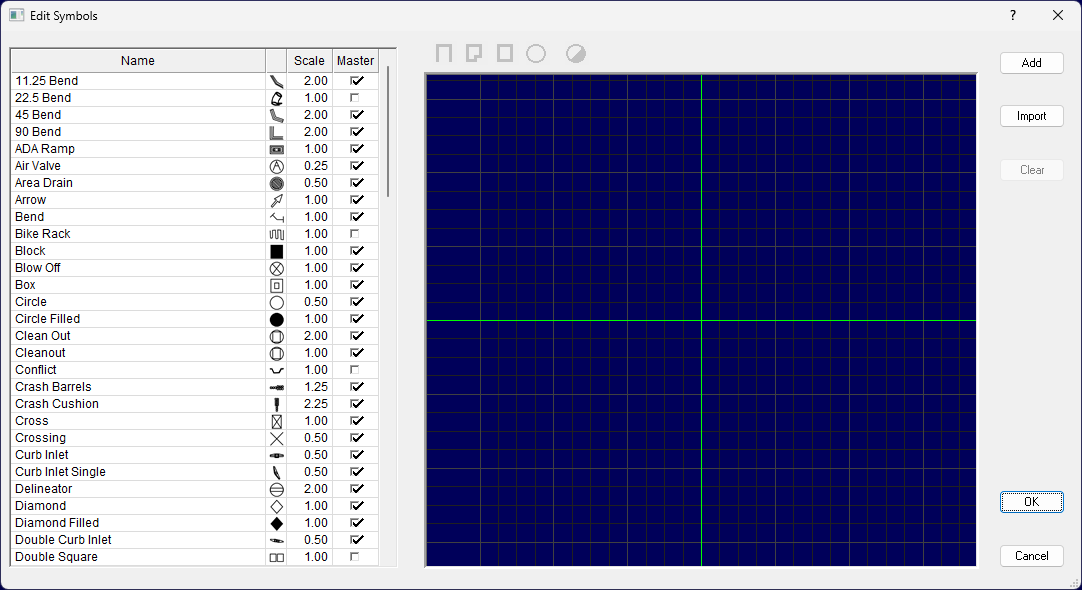
New symbols may be added manually. Click the Add button. Enter a name. Check Master if you want to add the symbol to the default list.
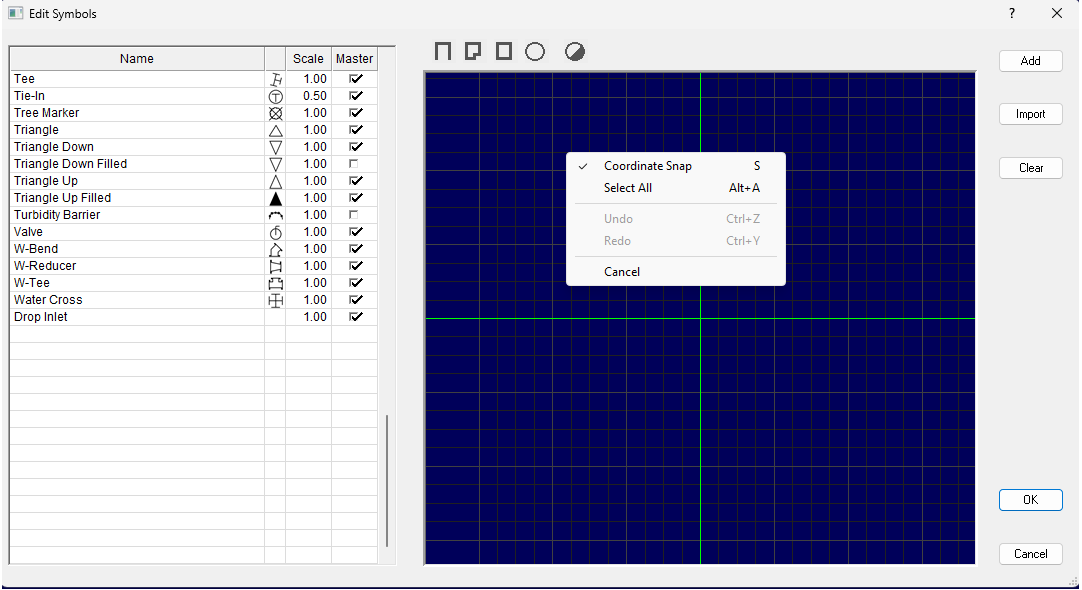
When drawing a symbol, to snap to the grid, right click and check Coordinate Snap. To draw the symbol, you may use the drawing tools. You may use a Polyline, Polygon, Rectangle, or Ellipse. You may also fill enclosed areas.
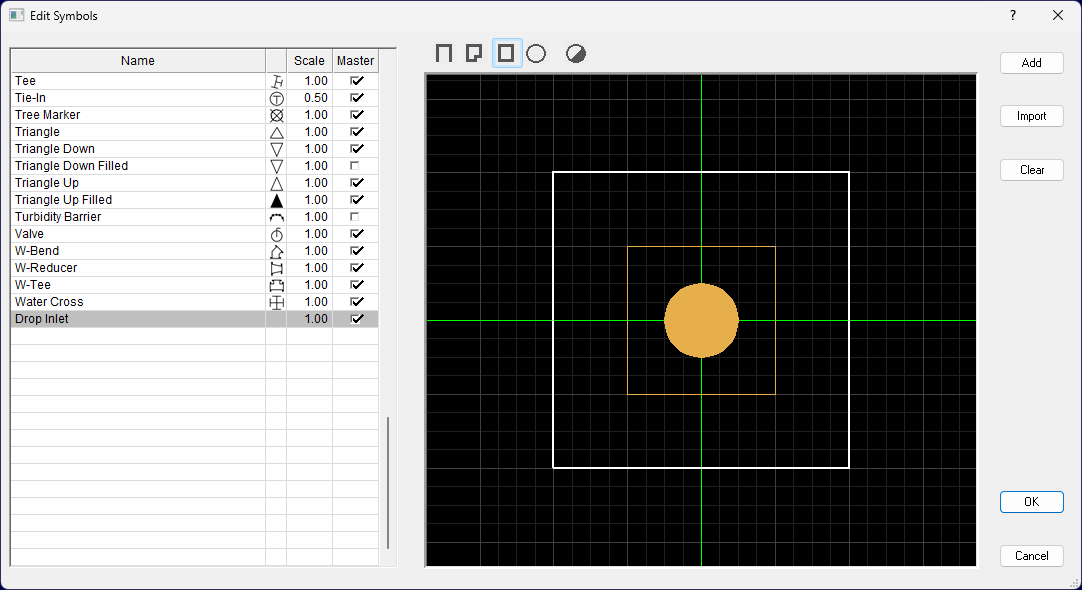
Symbols may also be created from a CAD file or vector PDF file. In Import mode, locate the lines you want to use as a symbol. You may hold the shift key to select individual lines, or window select the lines.
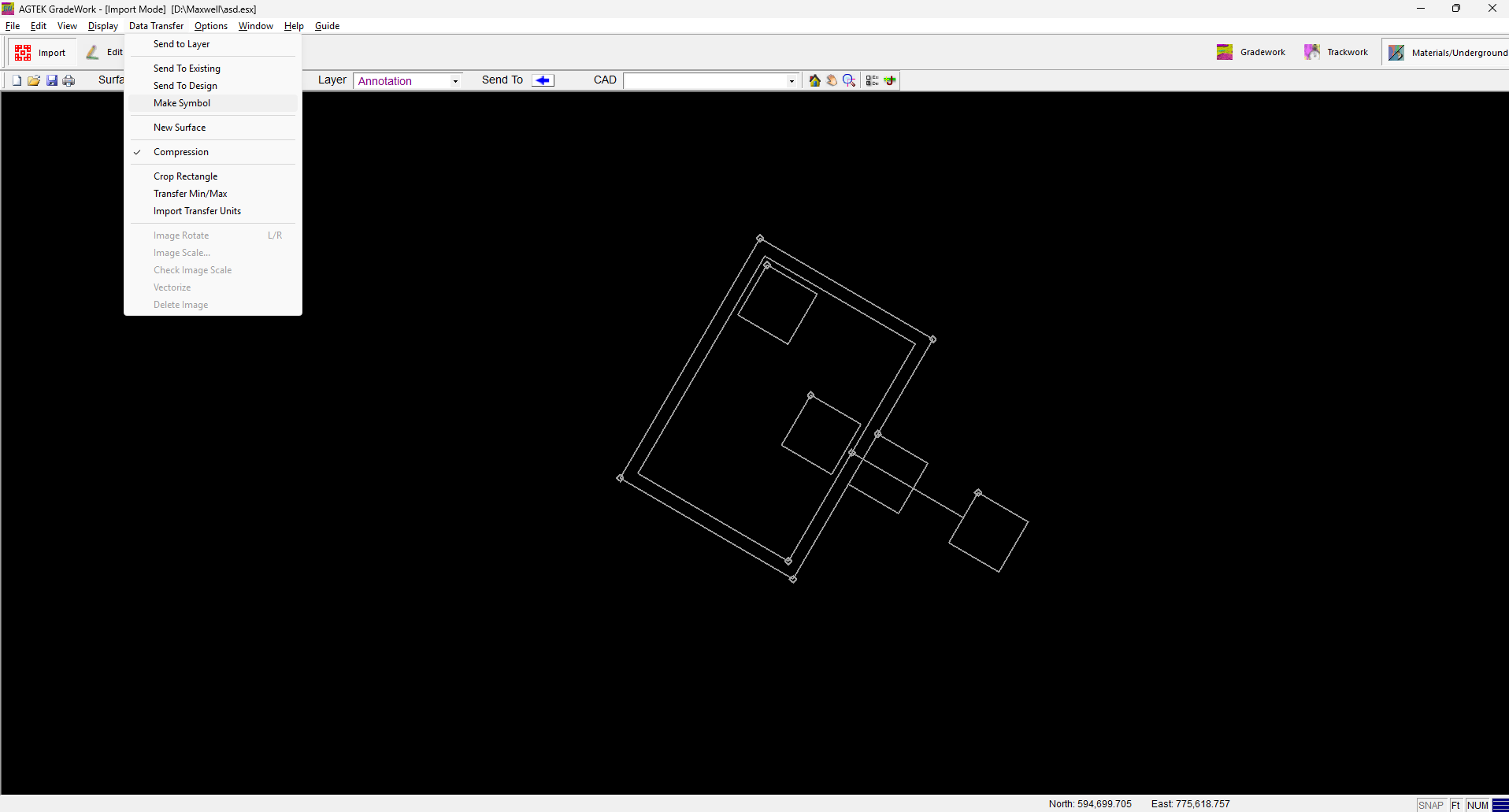
Select the Data Transfer menu and select Make Symbol. Enter a name and click OK. The symbol will be added to the symbol list.
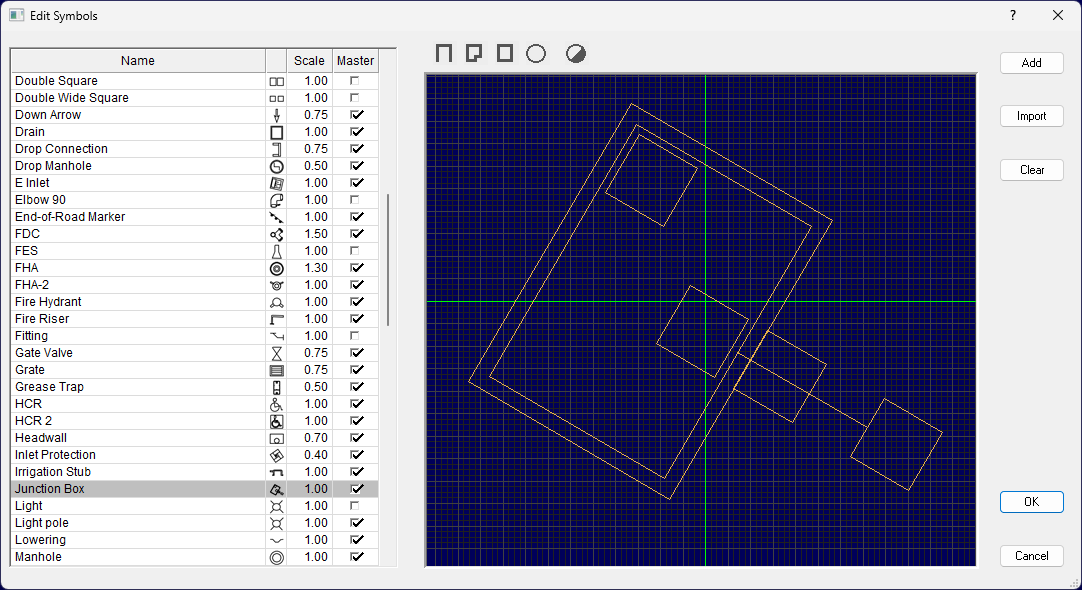
Symbols may also be imported from an SVG file. Click Import.
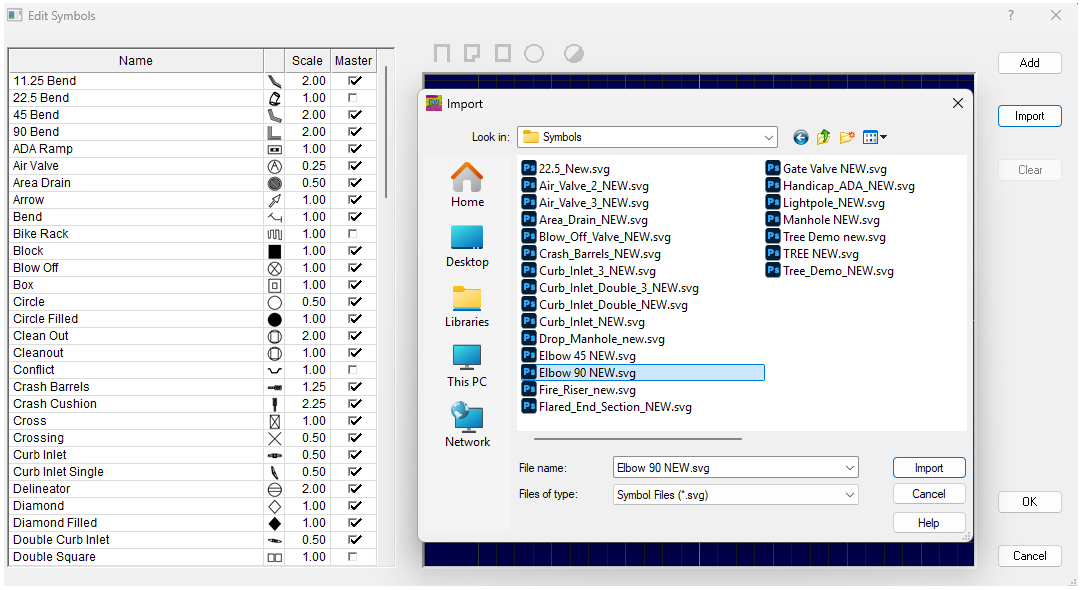
Select the desired file and click Import. The symbol will be added to the list. Check Master to use the symbol in the default list.